The Great Human-Experience novel! (Forget
"the Great American" novel--I aspire
to much higher goals.) Every time I read
an article about writing or writers, I get a hankering for “putting pen to
paper.” But those days of using such writing tools are actually long gone for
me. I keep challenging myself to become more and more “digital” and living my life
in the cloud. (Heaven knows my head has been in the clouds most my life!) Most
of what I write is with a computer. I no longer own a desktop PC, I am completely mobile with a laptop, tablet and phablet.
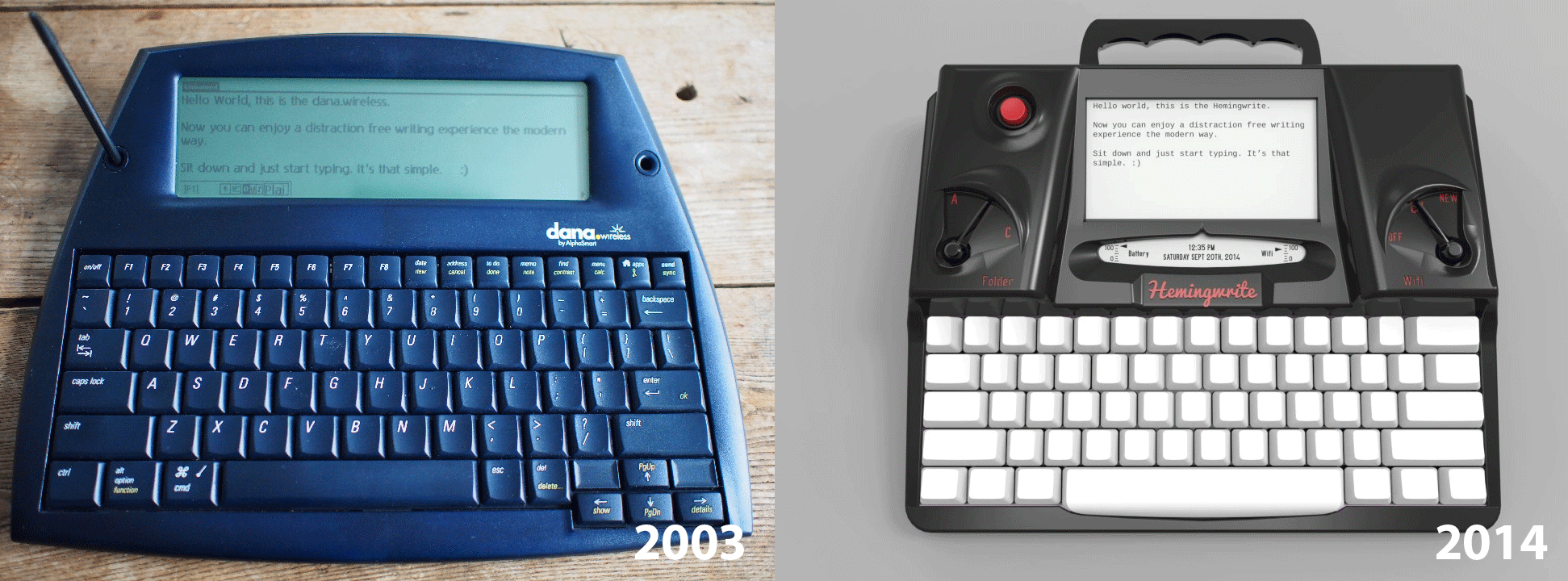
Just today (12/12/2014) I was reading about a new device whose market focus is writers. It is called the Hemingwrite and is currently being crowd-funded. My knee-jerk first impression was that it is so 1990’s retro--looking very much like other LCD small displays with nearly full-sized keyboards. (The latter can be had for under $100 on Amazon, while the Hemingwrite is reportedly going to cost between $400 to $500.)
The Hemingwrite promotes itself by claiming it
is a “distraction free” writing tool. OK, I guess if you are an obsessive
compulsive that needs to check your email, social feeds and texts every few seconds, that
might be a benefit. But won’t you have your phone right alongside you anyway?
Those wanting to work distraction-free on computers can easily do so by turning
off wifi or closing the email agent (thus preventing emails) and muting or turning off their phone (a
blood-curdling scream is heard in the reverberating distance). That is a much
cheaper solution than buying yet another device to lug around. And speaking
about “lugging,” the Hemingwrite is not a lightweight! It weighs 4 pounds,
which is heavier than some laptops and decidedly heavier than all tablets
today.
But coming back to how I “write” these
days: Lately, the idea of “writing” with a keyboard seems like a contradiction
in terms and completely unnatural. Real writing is done with pen (pencil) and
paper. And so I’ve come full circle. Instead of using a keyboard, I’ve recently
discovered it is much more natural to use Smart Note (the
“paper”) and a Samsung 12" Galaxy Note Pro with stylus. (In fact, this
article was written using those items and subsequently exported and polished
inside Google Docs.)
I already mentioned that the Hemingwrite weighs
4 pounds and will cost upwards of $500. Compare that to the Samsung Galaxy Note
Pro 12.2 which is $800 but weighs only 1.7 pounds. (Alternately, the Samsung Note 10.1
weighs only 597 grams and costs as little as $300.) Both run Android and have a
great stylus, a much clearer and larger screen, promote natural handwriting
that is converted immediately to typewritten text, plus numerous other bells
and whistles. Using the aforementioned Smart Note, that text can be exported to
PDF, uploaded to the cloud, or copied directly to any text editing app even an
SMS texting app. Adding pages, inserting, deleting, and editing text is easy
using the app’s “natural” gestures.
Really, my stylus-based solution is much more cost effective and productive than the Hemingwrite. But what if you absolutely want, no indeed, demand a keyboard? Then your options are even less expensive yet more powerful. Chromebook laptops are as cheap as $200 on Amazon and can create offline and online documents . Once you are online, the offline docs are backed up to Google Drive. Don’t like Chromebook? No problem. How about a nice inexpensive Windows-based system also within the $200 to $300 range. Most of those have at very least Notepad or Wordpad. Beyond that, free programs such as Apache OpenOffice can be installed.
Really, my stylus-based solution is much more cost effective and productive than the Hemingwrite. But what if you absolutely want, no indeed, demand a keyboard? Then your options are even less expensive yet more powerful. Chromebook laptops are as cheap as $200 on Amazon and can create offline and online documents . Once you are online, the offline docs are backed up to Google Drive. Don’t like Chromebook? No problem. How about a nice inexpensive Windows-based system also within the $200 to $300 range. Most of those have at very least Notepad or Wordpad. Beyond that, free programs such as Apache OpenOffice can be installed.
In short, I feel Hemingwrite is a step
backwards, an unnecessary and archaic device adding more weight to carry
around. Its predecessors had their heyday. Today’s solutions are cheaper,
lighter, and more robust.